How to Use an Online Point Cloud Viewer for LAS, LAZ and E57
Online point cloud viewer for LAS, LAZ and E57 files: upload, confirm the EPSG, switch color modes, measure, export and keep large files on local storage.
In this article
An online point cloud viewer lets you open a LAS, LAZ or E57 file in a web browser. Upload the file, confirm its coordinate system (EPSG code), and wait for the conversion to finish. Then you can rotate and zoom the cloud, switch between color modes, and take measurements, with no desktop software installed. In Geosys AI, you get an email when conversion is done, and the cloud opens in a built-in viewer next to the rest of your project.
This guide covers the upload steps, the five color modes, working with large files, measuring and exporting, and how to keep a cloud on your own local storage.
Geosys AI accepts three point cloud formats, LAS, LAZ and E57, and opens each one in the same browser viewer. Point cloud tools are enabled per user and per project, so if you do not see them, ask your administrator to turn on LiDAR access for you.
LAS viewer
LAS is the common uncompressed survey format. To open a LAS file in an online viewer, upload it and confirm the EPSG code, the same as for any other cloud.
LAZ viewer
LAZ is the compressed version of LAS, and it is usually much smaller to upload. You upload a LAZ file and open it in the viewer the same way as a LAS file.
E57 viewer
E57 is a format often produced by terrestrial laser scanners. You can upload an E57 file directly or inside a ZIP, and it is converted so it opens in the browser viewer.
Step 1: Upload and confirm the EPSG
Upload the file and confirm the coordinate system when prompted. Conversion only starts after you confirm the EPSG code. This is deliberate: a cloud processed with the wrong reference will sit in the wrong place and give wrong measurements, so the confirmation step catches that early.
If the EPSG turns out to be wrong later, you can change the label without reconverting the cloud. The vertical datum, meaning the height reference, is recorded separately. It is stored as a label only and is not transformed, so make sure your survey uses the height reference you expect.
If a conversion fails or stays pending, it can be reprocessed from the archived source, so you do not need to upload the file again.
Step 2: Open the cloud and choose a color mode
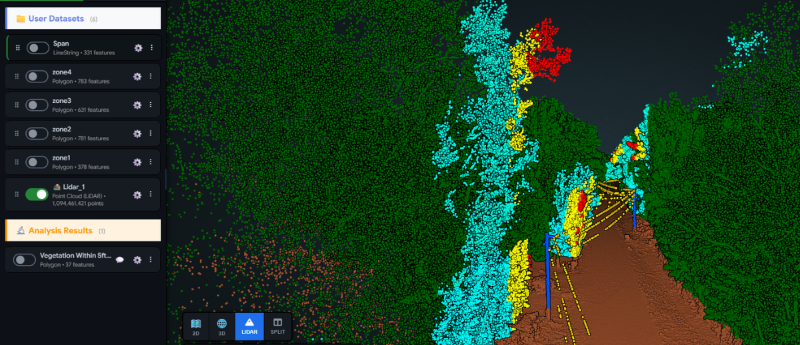
Once the status shows ready, open the cloud. The viewer has five color modes, and each one answers a different question:
- RGB shows the true color captured by the scanner or camera. Use it to recognize buildings, roads, vegetation and equipment.
- Intensity shows how strongly each pulse returned. It helps you pick out road markings, pavement edges and different surface materials.
- Classification colors points by class, such as ground, vegetation and buildings. It only helps if the file was classified before upload.
- Elevation colors points by height. It is the quickest way to see terrain shape, piles, cuts and low spots.
- Return number colors points by which return of a pulse they came from. It helps you see where a pulse passed through vegetation and reached the ground below.
You can also change point size, and a classification filter panel lets you show or hide individual classes. Each cloud stores its own classification settings, including per-class color overrides, so the view you set up is still there next time.
Working with large files
Point clouds are heavy, and a survey can be many gigabytes. A few habits keep things smooth:
- Prefer LAZ over LAS when you have the choice, because it is compressed and uploads faster.
- Confirm the EPSG before you leave the page, so conversion starts straight away.
- Wait for the email rather than watching the progress. The cloud is converted into a format that streams to the browser, so only the part you are looking at needs to load.
- Merge related clouds when a site was surveyed in several passes. Two or more LAS or LAZ clouds can be merged into one, as long as their coordinate systems and vertical references match. The merged cloud waits for EPSG confirmation like any new upload.
For very large desktop-side workflows, see our guide on syncing QGIS layers to the cloud, which covers the desktop upload app for large point clouds.
Keep a cloud on your own local storage
Some surveys are too large or too sensitive to upload. For those, an option is available on request: register the point cloud so that it stays on your own local storage. The browser reads the cloud directly from your storage, no point data reaches Geosys AI servers, and only metadata and the coordinate system label are stored.
There are trade-offs. Server-side actions such as reprojection and downloads are not available for data kept this way, so decide per project which clouds justify it.
Measure and export
The viewer records several kinds of measurement:
- Distance
- Area
- Height
- Volume
A measurement manager lists everything you have drawn, and you can zoom to, rename or delete any measurement. When you need the results elsewhere, export them as a zipped shapefile set, split by geometry type. You can optionally include a projection file with the EPSG so the shapes open in the right place in other GIS software.
For volume work on piles, the cloud can also produce a surface model and fill, cut and net figures. That workflow has its own steps, covered in how to calculate stockpile volume from a LiDAR point cloud.
Other ways to look at the same cloud
A point cloud does not have to live in its own window. It can also appear as a 2D plan view layer on the map, and street-level imagery can be viewed inside the viewer where you have street view access. Keeping the cloud in the same project as your vector layers and imagery means one place to look at everything.
If you need to draw geometry over the cloud and turn it into layers, read how to convert DXF drawings to GIS layers. You can browse everything else the platform does on the features page.
Checklist before you trust what you see
- The EPSG matches your survey report.
- The vertical reference is what you expect.
- Elevation mode shows no obvious stripes, offsets or spikes.
- Classification mode looks sensible, if the file was classified.
- A distance you know, such as a building width or a road width, measures correctly.
FAQs
Which point cloud formats can I open in the browser? Geosys AI accepts LAS, LAZ and E57 files. E57 files can be uploaded directly or inside a ZIP, and are converted so they open in the viewer.
Do I need to install anything to view a point cloud? No. The cloud opens in a viewer in your browser after conversion finishes, and you get an email when it is ready. LiDAR access is enabled per user and per project.
Can I keep a large point cloud on my own storage instead of uploading it? Yes, on request. The cloud stays on your local storage and the browser reads it directly, so no point data reaches Geosys AI servers. Server-side actions such as reprojection and downloads are not available for those clouds.
What can I export from the viewer? Distance, area, height and volume measurements can be exported as a zipped shapefile set, split by geometry type, with an optional projection file.