How to Convert DXF Drawings to GIS Layers
Turn DXF drawings into GIS layers and digitize new points, lines and polygons over a LiDAR point cloud. CAD extraction is available on request.
In this article
To convert a DXF drawing to GIS layers, upload the file to a platform with CAD extraction and let it split the drawing by geometry type into point, line and polygon layers you can put on a map. In Geosys AI, CAD extraction is available on request and is enabled per organization and per user, so ask us to switch it on before you start. DWG files are also supported where the deployment enables them, which is another reason to check with us first.
This guide explains the conversion, the browser workspace for digitizing over a point cloud, and how to publish and export the result.
Why convert CAD to GIS at all?
CAD drawings and GIS layers describe the world differently. A CAD file is a drawing: lines, arcs and text arranged for printing. A GIS layer is data: each feature has a geometry, a coordinate system and attributes you can query and style.
Moving a plan from CAD into GIS lets you overlay it on imagery, compare it with a survey, filter it by attribute and share it with people who never open CAD software.
Step 1: Upload the DXF
Upload a DXF or DWG file into the CAD workspace. Each file is converted into up to three GeoPackages, one each for points, lines and polygons. That split matters because a GIS layer holds one geometry type only. A drawing that mixes all three simply becomes up to three layers.
Binary DXF files are handled too. They are preprocessed automatically, so you do not need to save them out as text first.
Step 2: Check the coordinate system
A DXF file usually carries no reliable coordinate system. That is the biggest risk in CAD conversion: if you guess wrong, the drawing lands somewhere else on the map.
Before you trust a converted layer:
- Confirm the EPSG code from the drawing's source, such as the survey or design report.
- Compare a few known points, like a building corner or a road junction, with imagery or a survey layer.
- Check units. A drawing in feet or millimeters converted as meters will look correct in shape but wrong in scale.
A drawing has its own coordinate system setting, taken from the project or the organization default. Web Mercator (EPSG:3857) is not accepted for drawings, so use a proper projected system for your area.
Step 3: Digitize over a point cloud
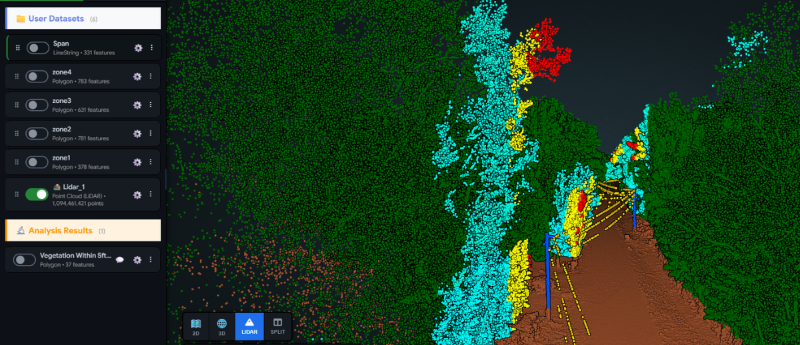
The other half of CAD extraction goes the opposite way: instead of importing a drawing, you create one. The CAD workspace is a browser surface for drawing points, lines and polygons over a LiDAR point cloud. It is useful when you need to trace features such as building outlines, kerbs, poles or breaklines from a scan.
The workspace offers:
- Snapping, ortho and constraint locking for clean geometry.
- Attribute editing on each feature.
- Section views, so you can check what you draw against the cloud from the side.
- Undo and redo.
- Box, lasso and polygon selection when a drawing is open in the point cloud view.
It works in both the 2D map and the point cloud view. Entering the workspace from a point cloud also needs LiDAR access. If you have not opened a cloud yet, our guide on viewing LAS, LAZ and E57 point clouds online covers the basics.
Each user has one drawing per project, made of layers and features. Drawing locks are per user, which protects you from editing the same drawing in two browser tabs. The project owner can view another user's drawing read-only.
Step 4: Import more data into a drawing
You are not limited to DXF. While you hold the drawing lock you can import DXF, DWG, GeoPackage, GeoJSON, KML or zipped shapefiles into a drawing. That lets you combine a CAD plan with existing GIS data, then edit everything in one place.
Step 5: Publish layers and export a DXF
When the geometry is right, publish layers as vector datasets on the project map. They then behave like any other layer: style them, query them, and share them with the team. You can also export the drawing as a single DXF file when a colleague or contractor needs it back in CAD.
Edits autosave as you work. If saving gets stuck, for example after a lost connection, unsaved edits are retried and you are warned rather than left guessing.
A practical workflow
- Confirm CAD extraction is enabled for you.
- Upload the point cloud and confirm its EPSG.
- Open the CAD workspace and import the DXF plan, if you have one.
- Digitize what is missing, using elevation color mode to see edges clearly.
- Publish the layers and check them against imagery.
- Export a DXF if the design team needs an updated drawing.
The same project can hold your point cloud, imagery and the converted layers, so checks stay one click away. For the full list of capabilities, see the features page, and for measuring piles on the same cloud see stockpile volume from a LiDAR point cloud.
FAQs
Is CAD extraction available on every account? No. CAD extraction is available on request and is enabled per organization and per user. Contact us and we will set it up.
What does a DXF become after conversion? Each file is converted into up to three GeoPackages: one for points, one for lines and one for polygons. Each can then be published as a vector layer.
Can I export my digitized work back to CAD? Yes. A drawing exports as a single DXF file. You can also publish its layers to the map as vector datasets.
Do I need a point cloud to use the CAD workspace? No. The workspace can open without a point cloud, but drawing is inactive until a cloud is displayed. Entering the workspace from a cloud also needs LiDAR access.