Security & Trust
Your data, your control
Fine-grained access, protected sign-in and the option to keep data on your own storage, built into the platform.
Access control
Roles that match your team
Give each person exactly the access they need, project by project.
Role presets
Viewer, editor, analyst and admin presets, plus a custom role with per-member toggles.
Read-only viewers
Viewers are blocked from uploads, edits, deletions and analysis writes. AI, comments, downloads and local restyling are allowed by default and can be switched off one by one.
Per-member permissions
Upload, attribute editing, 3D, street view and LiDAR access are set for each member and project.
Different roles per project
One person can be a viewer in one project and an owner in another.
Sign-in protection
Protect every account
Lockout and email verification protect accounts, and multi-factor authentication adds a second layer that any user can turn on.
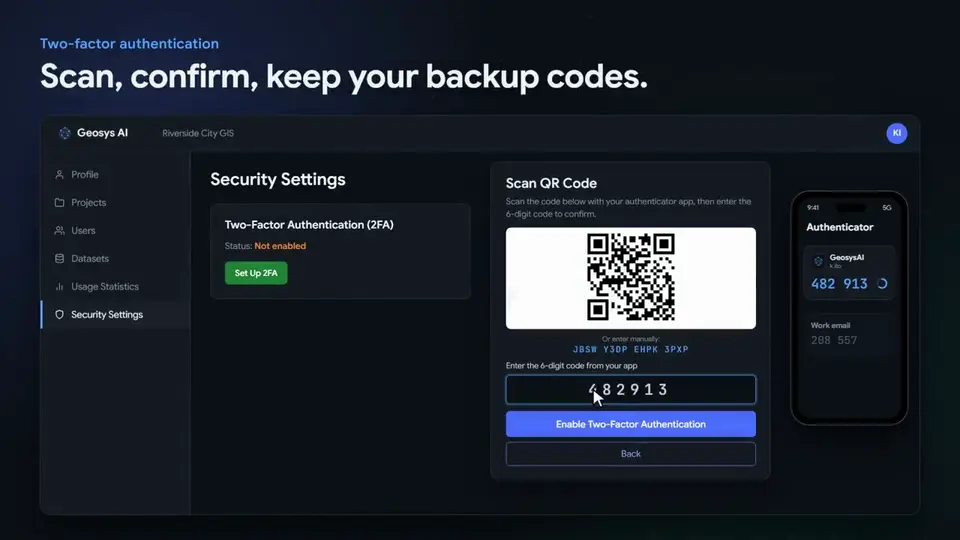
Multi-factor authentication
Use an authenticator app or emailed codes, with single-use backup codes.
Lockout
Five failed attempts lock an account for 15 minutes.
Email verification
Regular user accounts confirm their email address with a one-time code.
Account expiry
Set an expiry date for a user or a whole organization.
Data control
Your data stays where you want it
Keep rasters, point clouds and street imagery on your own local storage. The browser reads them directly, so the files never pass through Geosys AI servers.
- Each organization's users and projects are kept separate
- Map layer requests are checked against project membership
- Local storage is available on request
- Server-side actions such as AI analysis, reprojection and downloads are not available for local-storage rasters and point clouds
AI controls
Decide how AI is used
AI is a setting you control, not a switch you cannot reach.
Organization AI off switch
Turn every AI feature off for an organization with one setting. There is no bypass.
Per-project AI keys
A dedicated AI provider key can be configured for an individual project.
Verified results
Standard analyses run inside a controlled wrapper and are checked before results are published.
Privacy
Privacy tools built in
People stay in control of their own data, and administrators keep an audit trail.
Delete your account
Users can delete their account and its associated data themselves.
Export your data
Request a ZIP of your personal data, delivered as an emailed download link.
Activity log
Logins, uploads and analyses are recorded and kept for 90 days by default.
Encrypted backups
Nightly database backups are stored encrypted in a separate location.
FAQ
Frequently asked questions
How does Geosys AI control who can see my data?
Access is set per person and per project, using viewer, editor, analyst and admin presets or a custom role. Each organization's users and projects are kept separate.
Does Geosys AI support multi-factor authentication?
Yes. Any user can turn on multi-factor authentication with an authenticator app or emailed codes, with single-use backup codes.
Can my data stay on my own storage?
Yes. Rasters, point clouds and street imagery can stay on your own local storage, and the browser reads them directly. This is available on request.
Can I turn AI off?
Yes. An organization can turn every AI feature off with one setting, and there is no bypass.
See it on your own data
Tell us about your project and we will walk you through it on a dataset like yours.
Ready to deploy?
Get a demo, pricing, and a pilot plan tailored to your data stack.