Stockpile Volume Calculation From a LiDAR Point Cloud
Stockpile volume calculation from a LiDAR point cloud: build a surface model, draw a polygon, read fill, cut and net volume, and verify the result.
In this article
Stockpile volume calculation from a LiDAR point cloud means building a surface model of the site from the points, drawing a polygon around the stockpile, and measuring the material between the stockpile surface and a base surface inside that polygon. The result is reported as fill, cut and net volume, plus the polygon area and the elevation range. In Geosys AI, the surface model is generated when you upload the cloud, so measuring a pile takes a polygon and a click rather than a desktop processing session.
This guide walks through the method step by step, explains what each number means, and shows how to check that a result is trustworthy before it goes into a report.
What you need before you start
A stockpile volume is only as good as the survey behind it. Before uploading, make sure you have:
- A LAS, LAZ or E57 point cloud that covers the whole stockpile, with clear ground around it.
- The correct coordinate system (EPSG code) for the data. Volumes are computed in cubic meters, so the horizontal and vertical units need to be right.
- Stockpile analysis turned on for that cloud at upload time. LiDAR access is also enabled per user and per project, so ask your administrator if you do not see the point cloud tools.
E57 files can be uploaded directly or inside a ZIP. Geosys AI converts them so they open in the browser viewer.
Step 1: Upload the cloud and confirm the EPSG
Upload the LAS, LAZ or E57 file and confirm the coordinate system when prompted. Conversion only starts after you confirm the EPSG, which prevents a cloud from being processed with the wrong reference. You receive an email when conversion finishes.
If you need to correct the coordinate system later, you can relabel it without reconverting the cloud. The vertical datum is recorded separately. Note that the vertical datum is stored as a label only and is not transformed, so make sure your survey uses the height reference you expect.
Step 2: Let the surface model (DSM) generate
When stockpile analysis is enabled at upload, Geosys AI generates a digital surface model (DSM) alongside the viewer conversion. A DSM is a raster where each cell holds an elevation taken from the point cloud. It is the surface the volume calculation measures against.
The DSM has its own status: processing, ready or failed. Wait for it to show ready before analyzing. A pile measured before the DSM is ready cannot be calculated.
Step 3: Draw the stockpile polygon
Open the cloud and draw a polygon around the stockpile, or select an existing polygon. The polygon does two jobs: it defines the footprint of the pile, and it clips the DSM so only the surface inside the boundary is measured.
Some practical tips for a good boundary:
- Follow the toe of the pile, where the stockpile meets the surrounding ground.
- Stay slightly outside the toe rather than cutting into the pile, so the edge material is counted.
- Avoid including haul roads, equipment or neighboring piles.
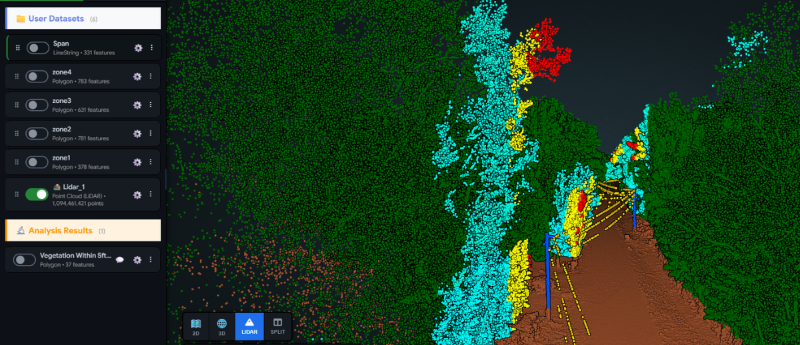
- Use the classification and elevation color modes in the viewer to see where the pile ends and the ground begins.
Step 4: Read fill, cut and net volume
Once the polygon is clipped against the DSM, you get:
- Area of the polygon in square meters.
- Fill volume in cubic meters.
- Cut volume in cubic meters.
- Net volume in cubic meters.
- Minimum and maximum elevation inside the polygon.
In general survey practice, cut and fill describe material above and below a reference surface, and net is the balance between them. For a typical freestanding stockpile you will mostly care about the net figure. Before you rely on a number, confirm how your report defines the reference surface, and compare it with a value you already trust (see the verification section below).
Results are saved as analysis layers on the map, so the polygon and its figures stay with the project and can be shared with the rest of the team.
Step 5: Run a batch for many stockpiles
Most sites have more than one pile. Instead of measuring each one by hand, run a batch analysis over many polygons at once. Each polygon produces its own result, so you can compare piles, track inventory across a yard, or repeat the same set of polygons on a new survey.
A tidy workflow for recurring surveys:
- Draw and name a polygon for each pile once.
- Upload each new survey with stockpile analysis enabled.
- Run the batch with the same polygons.
- Compare the net volumes between survey dates.
Keeping polygons consistent between surveys matters more than making any single boundary perfect, because it makes the change between dates meaningful.
Step 6: Export a PDF report
Stockpile PDF reports are available depending on your plan. A report gives you something to hand to a site manager, a client or an accountant without asking them to open the viewer. The results are also saved on the map as analysis layers, and you can export point cloud measurements as a zipped shapefile set, split by geometry type, with an optional projection file.
How to verify a stockpile volume
A volume that looks plausible is not the same as a volume that is right. These checks apply to any stockpile measurement software, including Geosys AI. Build these checks into your routine:
- Check the coordinate system. A wrong EPSG or unit is the most common cause of results that are obviously off.
- Inspect the point cloud. Look at the pile in the viewer using elevation and classification colors, and confirm there are no gaps, noise spikes or missing coverage over the pile.
- Review the polygon. Zoom in on the boundary at several points and confirm it sits at the toe of the pile.
- Compare against a known value. Measure a pile or feature with a known volume, such as a surveyed reference pile or a prior survey you trust, and check the difference.
- Cross-check with the viewer's own measurement tools. The viewer records distance, area, height and volume measurements, which gives you an independent reading to compare with the batch result.
- Keep survey conditions consistent. Wet material, vegetation on a pile or a pile partly hidden from the scanner will all change what the cloud sees.
Point cloud volumes are estimates from a survey, so treat them as such. If a figure feeds a payment or a regulatory report, keep your own quality checks alongside it.
Where this helps
Mining operations use stockpile measurements to track inventory and reconcile material movement between surveys. Construction teams use them for earthwork material, spoil heaps and aggregate piles on site. In both cases the value is the same: repeatable measurements from the same polygons, kept next to your maps, drone imagery and other layers.
You can read more about the viewer, merging clouds and alignment on the LiDAR and point clouds page.
FAQs
What file formats can I use to calculate stockpile volume? Geosys AI accepts LAS, LAZ and E57 point clouds. E57 files can be uploaded directly or inside a ZIP, and are converted so they open in the browser viewer.
Do I need to turn something on for stockpile analysis? Yes. Stockpile analysis is enabled per cloud when you upload it, and it generates the surface model used for the calculation. LiDAR access is also enabled per user and per project.
Can I measure many stockpiles at once? Yes. Batch mode runs the analysis over many polygons in one go, and each polygon produces its own fill, cut and net volume, area and elevation range.
Is the PDF report available on every plan? The stockpile PDF report is available depending on your plan. Ask us which plan fits your team.
How accurate is the volume? Accuracy depends on your survey: point density, coverage, ground conditions and the boundary you draw. Check the coordinate system, inspect the cloud, and compare against a known value before relying on a figure.
Is there a stockpile volume calculator for point clouds? Yes, in Geosys AI. You draw the polygon in the browser viewer, and the fill, cut and net volumes are calculated from the surface model, so no desktop processing session is needed. Stockpile analysis must be turned on when you upload the cloud.