Offline Field Data Collection for GIS Teams
Capture GPS-pinned notes and photos on a phone that keep working offline and sync later, then discuss them on the map. The field app is available on request.
In this article
For offline field data collection, use a phone app that lets you drop a pin at your GPS position, add a note and photos, and save it on the device when there is no signal. When connectivity returns, the captures are sent in order and show up on the project map for the whole team. The Geosys AI field app works this way, and it is available on request, enabled per organization, so contact us to switch it on.
This guide covers how capture works, what happens offline, and how the team discusses findings on the map, including clients who have no account.
What field capture looks like
You open the field app on a phone. It shows the project map, with layers you can toggle and feature pop-ups you can tap. To record something, you place a pin at your GPS fix, or drag the pin anywhere on the map when you want to mark a different spot. Then you add a note and attach photos.
Each capture is a comment thread anchored to a location. That has a nice side effect: a field note is not a separate record in a separate system. It is a conversation on the map, and colleagues can reply to it.
Some details worth knowing:
- GPS accuracy is recorded with the capture. If you drag the pin instead of using the GPS fix, the accuracy is left empty, so the record honestly shows the position was placed by hand.
- A comment or reply can carry up to five photos.
- Photos are re-saved on upload, location metadata is stripped from the image file, and a small thumbnail is generated.
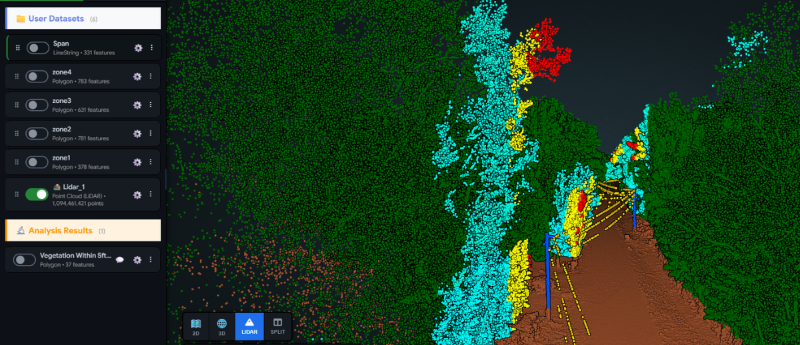
- The app switches between 2D, 3D and point cloud views where you have access to them.
What happens offline
Field work often happens where the signal is poor. The app is built for that:
- Captures made offline, including photos, are stored on the device.
- When the connection returns, they are sent one after another, in order.
- Retries never create duplicates, because each capture carries its own identifier that the server recognizes.
- A banner tells you when the device is offline, so you always know where you stand.
- The app shell is cached, so it opens without a connection.
- When you are back online, the session is checked again.
Two practical notes. First, open the project on the phone while you still have a connection, so the app is ready before you go out. Second, do not clear the browser data on the phone before a sync, because unsent captures are stored there.
Install it like an app
The field app is a progressive web app, so there is nothing to download from an app store. You open it in the phone browser and add it to the home screen. The name, colors and logo come from your organization's branding, so it looks like your own tool to your crew.
Discussing findings on the map
Capture is only half the story. The value comes from what the office does with it.
Replies and resolution. Anyone with access can reply to a thread. Editors and admins can mark a thread resolved, which hides it from the default list until you choose to show resolved threads.
Mentions. Type @ and a username to mention a project member. They get an email, and the thread appears in their unread list. Unread tracking follows each person's own reading position, so a thread is only unread when there is something new for them.
Guest comments through share links. When you share a project with a client through a read-only link, you can allow comments. Guests can post and reply with text. They cannot attach photos, mention people, resolve threads or delete anything. The setup for links, expiry dates and passwords is in our guide on sharing a GIS project with clients without accounts. The client delivery page shows the whole picture.
A simple field workflow
- Before the day, confirm everyone on the crew has access to the project.
- Open the project in the field app while online.
- Capture issues, measurements or observations as pins with photos.
- Let the queue sync when you have a signal.
- In the office, review the threads, reply, mention the person responsible and resolve items when they are done.
- Share the map with the client so they can add text comments to what they see.
Pairing with other data
Field notes are most useful next to your other layers. On the same map you can have drone imagery, survey layers and point clouds. For example, a crew could flag a problem near a stockpile, and the office could check it against the cloud, as described in how to calculate stockpile volume from a LiDAR point cloud.
Comments can be anchored in the 2D map, the 3D globe or the point cloud viewer, so a note stays attached to the view where it makes sense.
Things to keep in mind
- The field app is available on request and enabled per organization.
- GPS accuracy depends on the phone and the sky view, so treat the recorded accuracy value as a guide.
- Photo comments are limited in size, so shoot at normal phone quality rather than the highest setting.
- Only signed-in members can attach photos or mention people.
For more on what the app does, see the field app page.
FAQs
Does the field app work without a signal? Yes. Captures, including photos, are stored on the device and sent in order when the connection returns. An offline banner shows when there is no connection.
Will a poor connection create duplicate notes? No. Each capture has its own identifier, so a retry returns the existing note rather than creating a second one.
Can clients comment without an account? Yes, when you allow it on a share link. Guests can add text comments, but cannot attach photos, mention people, resolve threads or delete anything.
Is the field app available to everyone? It is available on request and enabled per organization. Contact us and we will set it up.